


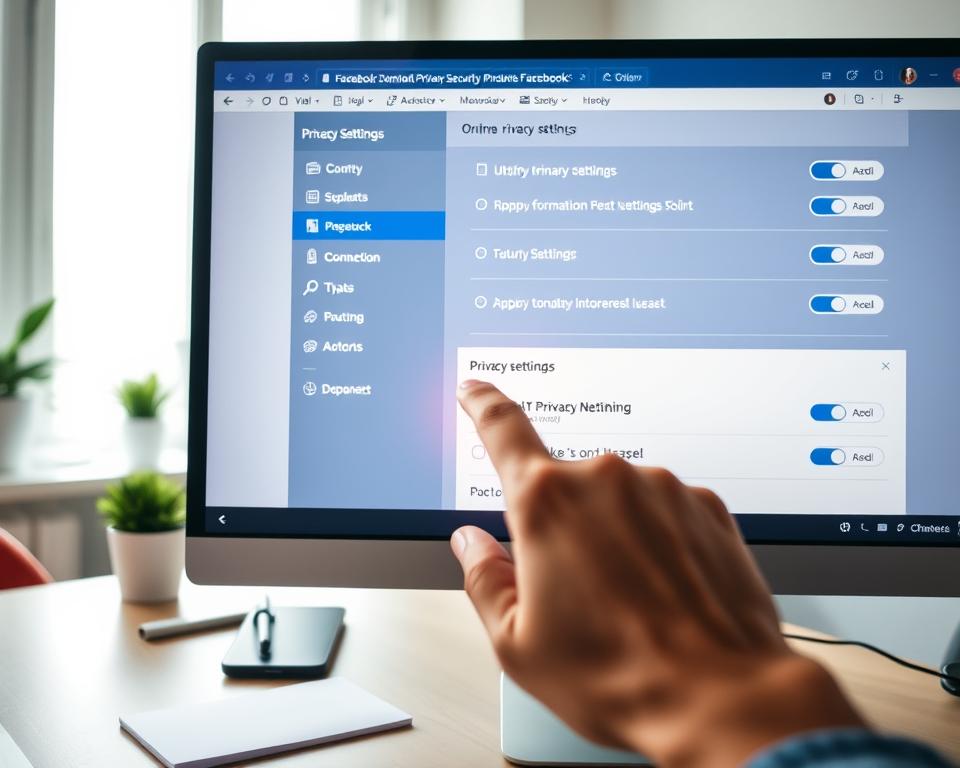
Did you know millions of users unknowingly share their online privacy settings every day? I was one of them until I took control of my digital presence.
I found out that tweaking a few settings can greatly improve my online security. In this article, I’ll share the 5 easy steps I took to boost my privacy on Facebook.
By following these simple steps, you can safeguard your personal data and have a safer online experience.
Key Takeaways
- Understand your online privacy settings
- Adjust your account settings for better security
- Limit data sharing with third-party apps
- Use two-factor authentication for added protection
- Regularly review your privacy settings
Understanding the Importance of Facebook Privacy
Facebook privacy is key in today’s digital world. Personal data is always at risk. I learned that privacy isn’t just hiding info; it’s about who sees my life and how they use it.
Why Is Privacy Essential on Social Media?
Privacy on social media keeps my personal info safe. With more data breaches and identity theft, sharing wisely is vital. Strong privacy settings help keep my data from being misused.
Having control over privacy lets me share info safely. It’s about making a safe space online where I can be free.
Recognizing the Risks of Facebook Data Sharing
Facebook data sharing can be risky if not handled right. Sharing data with apps or on the platform can lead to misuse. Knowing these risks helps me protect myself.
To stay safe, I need to know how my data is used. Understanding Facebook’s data policy and sharing wisely are key. Being proactive helps reduce data sharing risks.
My First Step: Reviewing Privacy Settings
To improve my Facebook privacy, I first checked my privacy settings. This step helped me see who could view my info and interact with me.
Navigating to Privacy Shortcuts
Finding privacy shortcuts on Facebook is easy. I clicked the dropdown arrow at the top right of the Facebook page and chose “Settings & Privacy.” Then, I clicked on “Privacy Shortcuts” for quick access to important settings.
Here are the steps I followed:
- Click on the dropdown arrow at the top right corner of the Facebook homepage.
- Select “Settings & Privacy.”
- Click on “Privacy Shortcuts.”
Customizing Profile Visibility
Customizing my profile visibility was key. I went to “Privacy Shortcuts” and clicked on “See More Privacy Settings.” This took me to a detailed page where I could manage who sees my profile, posts, and more.
I made sure to:
- Limit my profile visibility to friends only.
- Adjust the audience for my past posts.
Blocking Unwanted Friends
Blocking unwanted friends was another important step. I went to their profile, clicked the “…” button below their cover photo, and chose “Block.”
To block someone:
- Go to their Facebook profile.
- Click on the “…” button below their cover photo.
- Select “Block.”
Limiting Data Sharing with Third-Party Apps
To boost my internet privacy, I took a key step. I controlled how third-party apps access my Facebook data. This is important because these apps can get a lot of personal info, risking my privacy.
![How to Remove Third-Party App Access From Facebook [Guide]](https://i.ytimg.com/vi/ZiNyy2TFqSM/hqdefault.jpg)
At first, I found many apps I hadn’t used in years were linked to my account. This was a privacy risk and made my account messy.
Identifying Third-Party Apps Connected to My Account
The first thing I did was find all the third-party apps linked to my Facebook. I went to my Facebook settings, then to “Apps and Websites.” There, I saw a list of all connected apps.
Reviewing this list carefully was key. It showed me apps I’d forgotten about, some unused for years. This helped me see how much data was being shared without my knowledge.
Removing Apps I Don’t Use
After finding the apps, I removed the ones I didn’t use. I picked the apps I wanted to remove and confirmed I wanted to disconnect them from my Facebook.
This simple action greatly improved my privacy by stopping these apps from getting my data. It’s a simple step that can really cut down on data misuse risks.
By limiting data sharing with third-party apps, I made a big step towards keeping my online privacy safe. It’s a vital practice for anyone who cares about their digital security.
Securing My Account with Two-Factor Authentication
Adding two-factor authentication to my Facebook account has changed the game for my online privacy. It adds an extra layer of security, making it harder for others to get into my account. This move has not only boosted my social network privacy but also made me feel safer online.
Setting Up Two-Factor Authentication
Setting up two-factor authentication on Facebook was easy. I went to my account settings and picked “Security and Login.” Then, I clicked “Use two-factor authentication” and followed the steps. For more help, check out this guide on setting it up. This extra step has been key in boosting my digital privacy controls.
Choosing the Right Method for Verification
Facebook gives you a few ways to set up two-factor authentication. I picked an authentication app because it’s more secure and easy to use. With it, I get a special code to enter along with my password to log in. This method works well and keeps my account safe.
By using two-factor authentication, I’ve made a big step in protecting my Facebook account. It’s a simple yet effective way to keep my digital life private and secure.
Being Mindful of My Posts and Interactions
Boosting my Facebook privacy has been a big step for me. I’m now more careful about what I share and how I interact with others. This careful approach helps protect my personal info.
I’ve learned to adjust who sees my posts. This means thinking about who can see my updates. I make sure I’m not sharing too much with the wrong people.
Adjusting Audience Settings for Each Post
When I post, I always check the audience settings. This tool lets me choose who sees my posts. It’s a great way to control my online presence.
For example, if I’m sharing something personal, I set it to “Friends” or a specific group. This keeps my personal life private from strangers or people I barely know.
Think Before I Share
Thinking before I post is also key. I consider how my posts might be seen or shared. This helps me avoid any issues.
Before posting, I ask myself a few questions. “Is this info sensitive?”, “Could it be misunderstood?”, and “Do I want it public?” These questions help me make better choices online.
Being mindful of my posts and interactions has greatly improved my Facebook privacy and online safety. It’s a simple yet powerful way to manage my digital life.
How I Manage Friend Requests
Managing friend requests is key to keeping my Facebook private. I’m careful about who I add as friends. This choice affects my data protection and online privacy settings.
It’s not just about accepting or rejecting friend requests. It’s about making my Facebook profile safe. This way, I control who sees my posts and personal info.
Setting Guidelines for Accepting Requests
I have clear rules for accepting friend requests. I only accept from people I know or have mutual friends with. This keeps spammers out.
I also check the person’s profile before accepting. I look for a profile picture, cover photo, and activity. If it looks fake or suspicious, I don’t accept.
- Check for mutual friends or acquaintances.
- Verify the profile’s authenticity by looking at the profile picture, cover photo, and posts.
- Avoid profiles with little to no activity or those that seem spammy.
Reviewing Friends and Removing Inactive Accounts
I regularly check my friends list for inactive accounts or those I don’t interact with. This keeps my privacy and ensures my friends list is current.
I look for accounts that are inactive, show odd activity, or are out of my social circle. Removing them reduces the risk of my data misuse.
By keeping an eye on my friends list and being careful with requests, I boost my data protection and keep my online privacy settings strong on Facebook.
Keeping My Personal Information Private
Using Facebook, I’ve learned how vital it is to protect my personal data. In today’s world, social media privacy is a big deal. I make sure to share wisely and manage my settings well to avoid misuse.
What Information Do I Share?
I’m careful about what I share on Facebook. I only post what’s necessary or interesting. I don’t share my address or phone number. Instead, I share about my hobbies or like posts that matter to me.
Sharing certain info can have risks. For example, posting my location could tell others where I am. Being careful about what I share helps me feel safer.
Adjusting General Information Settings
Facebook lets me control who sees my info. I go to my account settings to check these options. I can decide who sees my name, profile picture, and cover photo.
Limiting who sees my info helps keep it safe from unwanted eyes. I also check my settings often to keep them up-to-date.
Keeping privacy on social media is an ongoing task. But it’s key to protecting my personal info. By staying informed and adjusting my settings, I have a safer and more private Facebook experience.
Making Use of Facebook’s Privacy Checkup
Using Facebook’s Privacy Checkup tool is easy to review and adjust my privacy settings. It helps users like me keep their account settings current. This ensures our privacy online is up to our comfort level.
Accessing the Privacy Checkup Tool
To start, I go to the Facebook settings area. I click on my profile picture in the top right corner. Then, I select ‘Settings & Privacy’, followed by ‘Settings’. Next, I look for ‘Privacy Checkup’.
Facebook sometimes asks for this checkup automatically. But I can also find it manually in the settings.
Completing the Privacy Checkup
The Privacy Checkup guides me through important privacy settings. It covers who can see my posts and how to manage my friends list. It also helps control information shared with third-party apps.
By following the prompts, I make choices that match my privacy policy on Facebook. This ensures my preferences are respected.
One great thing about the Privacy Checkup is it simplifies reviewing settings. It saves time and helps keep my privacy consistent online.
After using the Privacy Checkup, I feel my Facebook account is more private. It’s a simple yet powerful tool for anyone wanting better online privacy.
Reporting and Blocking Inappropriate Content
It’s important to report and block bad content on Facebook. This keeps my online space safe and respectful. Facebook has tools to help with this.
Recognizing Different Types of Inappropriate Content
To report bad content, I need to know what it is. This includes:
- Hate speech or harassment
- Violence or graphic content
- Nudity or sexually explicit content
- Spam or misleading information
Knowing these types helps me spot and report content that breaks Facebook’s rules.
Steps to Report or Block
Here’s what I do when I find bad content:
- Click on the three dots next to the post or content.
- Select “Report” and choose the reason for reporting.
- Follow the prompts to submit the report.
- If needed, I can block the user by going to their profile, clicking on the three dots, and selecting “Block.”
By doing this, I help keep the online community safe and respectful. It also improves my social network privacy and digital privacy controls.
Being Aware of Facebook’s Data Policy
As a Facebook user, knowing the platform’s data policy is key to keeping my info safe. Facebook’s policy explains how it collects, uses, and shares user data. It’s important to understand this to make smart privacy choices.
Understanding How My Data Is Used
Facebook uses my data for things like personalized content and ads. To grasp how my data is used, I need to know what data Facebook collects. This includes:
- Profile information, like my name, email, and profile picture.
- Activity data, such as my posts, comments, and likes.
- Device and browser data, like my IP address and browsing history.
Knowing how Facebook uses my data helps me make better privacy choices. I can adjust my settings to better protect myself.
Keeping Up with Policy Changes
Facebook often updates its data policy, and it’s important to stay current. To keep up, I can:
- Regularly check Facebook’s Data Policy page for updates.
- Look for notifications from Facebook about policy changes.
- Use online resources and news to stay informed about Facebook’s data practices.
By staying informed, I can keep my privacy up to date and protect my personal info.
In conclusion, being aware of Facebook’s data policy is essential for my privacy. By understanding data use and policy updates, I can control my online presence and safeguard my personal info.
Regularly Updating My Privacy Practices
To keep my privacy safe, I regularly check and update my Facebook privacy settings. This keeps my personal info safe in a changing online world. Being proactive helps protect my data from new threats.
Evaluating My Privacy Settings Periodically
It’s key to check my Facebook privacy settings often. I do this every few months to make sure they match my comfort level with sharing data. I look at who can see my posts and how I handle friend requests.
I also think about how Facebook’s data policy changes might affect me. A cybersecurity expert says, “Checking your privacy settings often can really help protect your data.” This keeps me informed and lets me adjust my settings as needed.
| Setting | Description | Recommended Action |
|---|---|---|
| Profile Visibility | Controls who can see your profile and personal information. | Limit visibility to friends or specific groups. |
| Post Audience | Determines who can see your posts. | Choose audience for each post or set default. |
| Friend Requests | Manages who can send you friend requests. | Restrict to friends of friends or specific criteria. |
Adding New Security Features
Facebook often adds new security features to help keep user data safe. I make sure to learn about these updates and use them right away. For example, turning on two-factor authentication adds extra security to my account.
“Keeping up with the latest security features is a simple yet effective way to improve your online privacy,” says a recent guide. Using these features helps protect my account and personal data.
In summary, keeping my Facebook privacy up to date is vital for my online safety. By regularly checking my settings and using new security features, I can keep my personal info safe.
Seeking Out Additional Resources for Facebook Privacy
Improving my Facebook privacy is more than just tweaking settings. It’s also about keeping up with the latest tips and tools. I look for extra resources to help me keep my personal info safe online.
Finding Help Through Facebook Support
Facebook’s support center is a treasure trove of privacy guides. It helps me understand how to manage my online life better. By checking out the Facebook Help Center, I get a lot of info on keeping my social media private.
Using Online Forums and Communities
Online forums and communities are great for staying in the loop on Facebook privacy. Sites like Reddit’s r/facebook and tech forums share the latest on privacy issues. This helps me stay ahead in protecting my personal info.